

POST requests.
1
Open Settings
In the lower-left menu, click the Settings icon.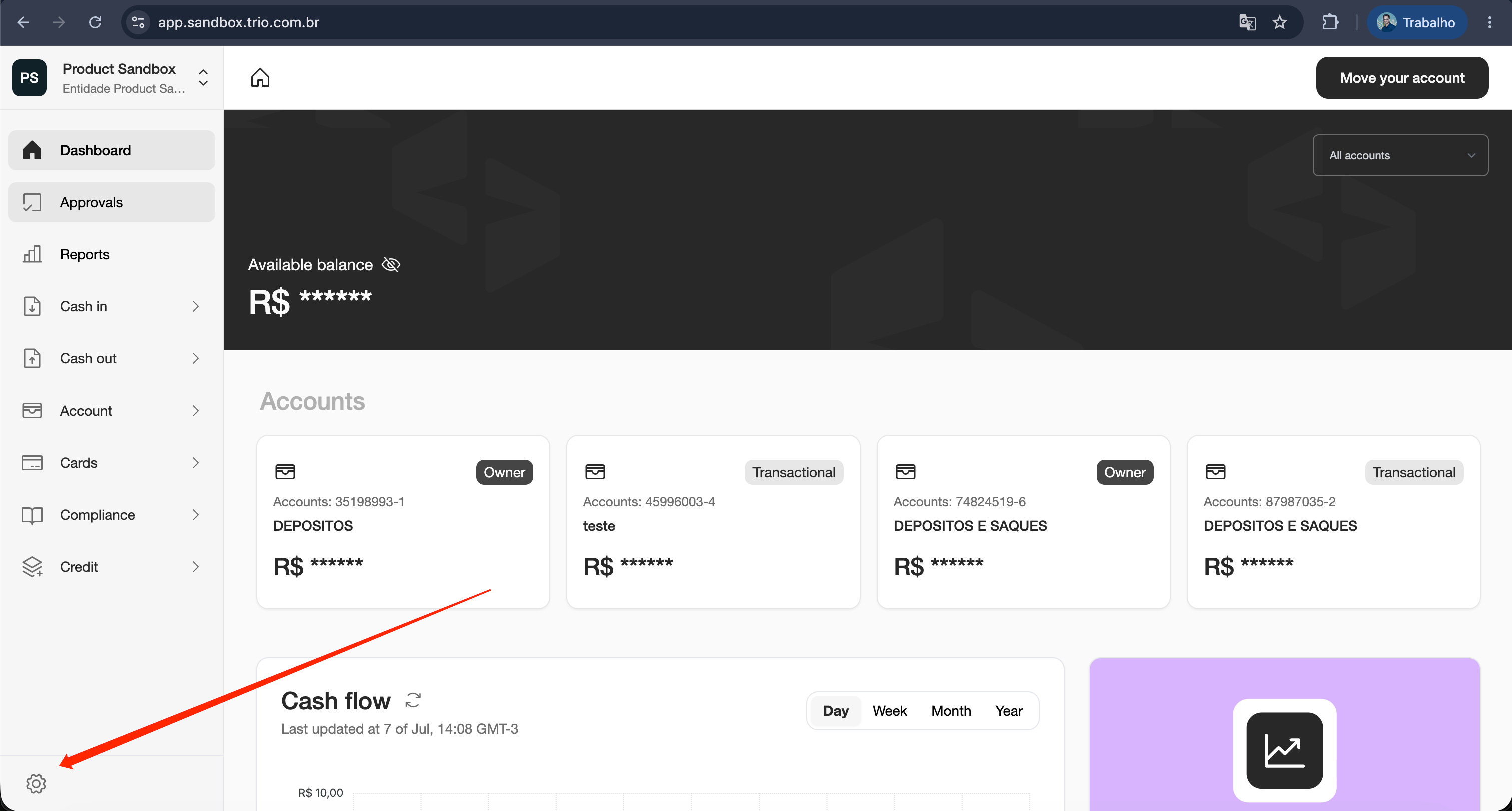
2
Go to Webhooks
In the dropdown menu, select Webhooks.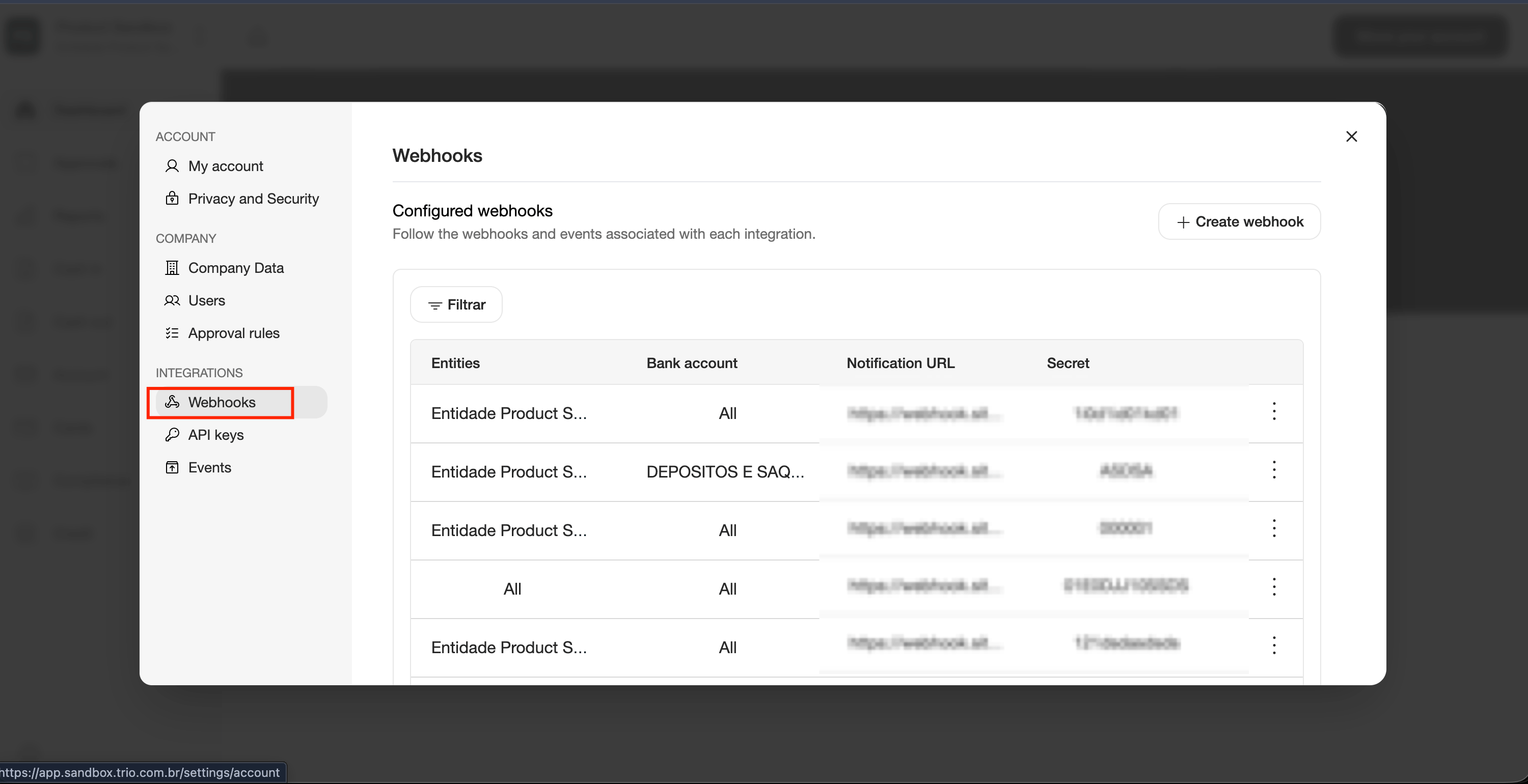
3
Create a webhook
Click Create Webhook.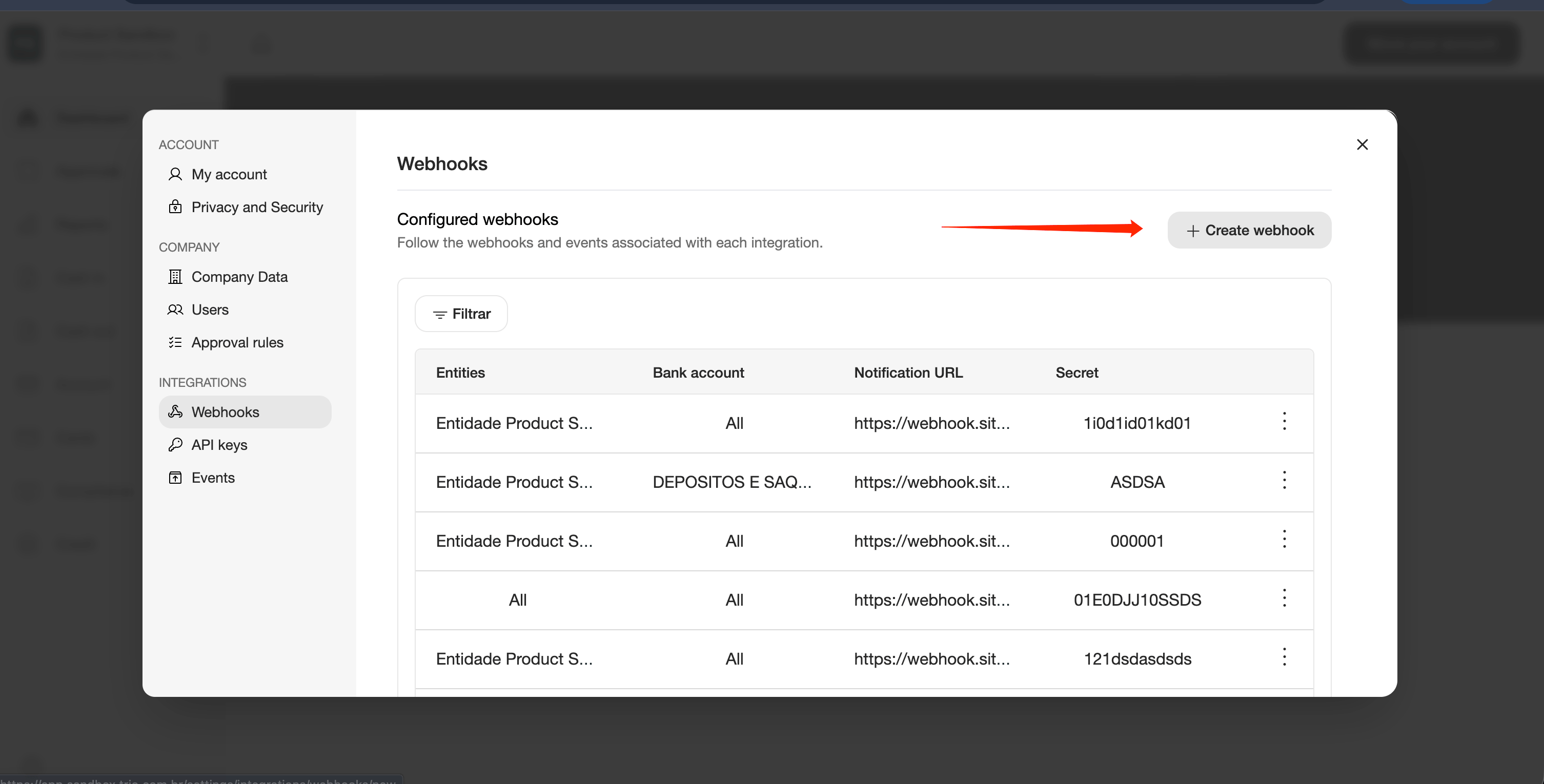
4
Fill in the Notification URL
This is the HTTPS endpoint where Trio delivers webhook notifications. Make sure it is publicly accessible and accepts HTTP 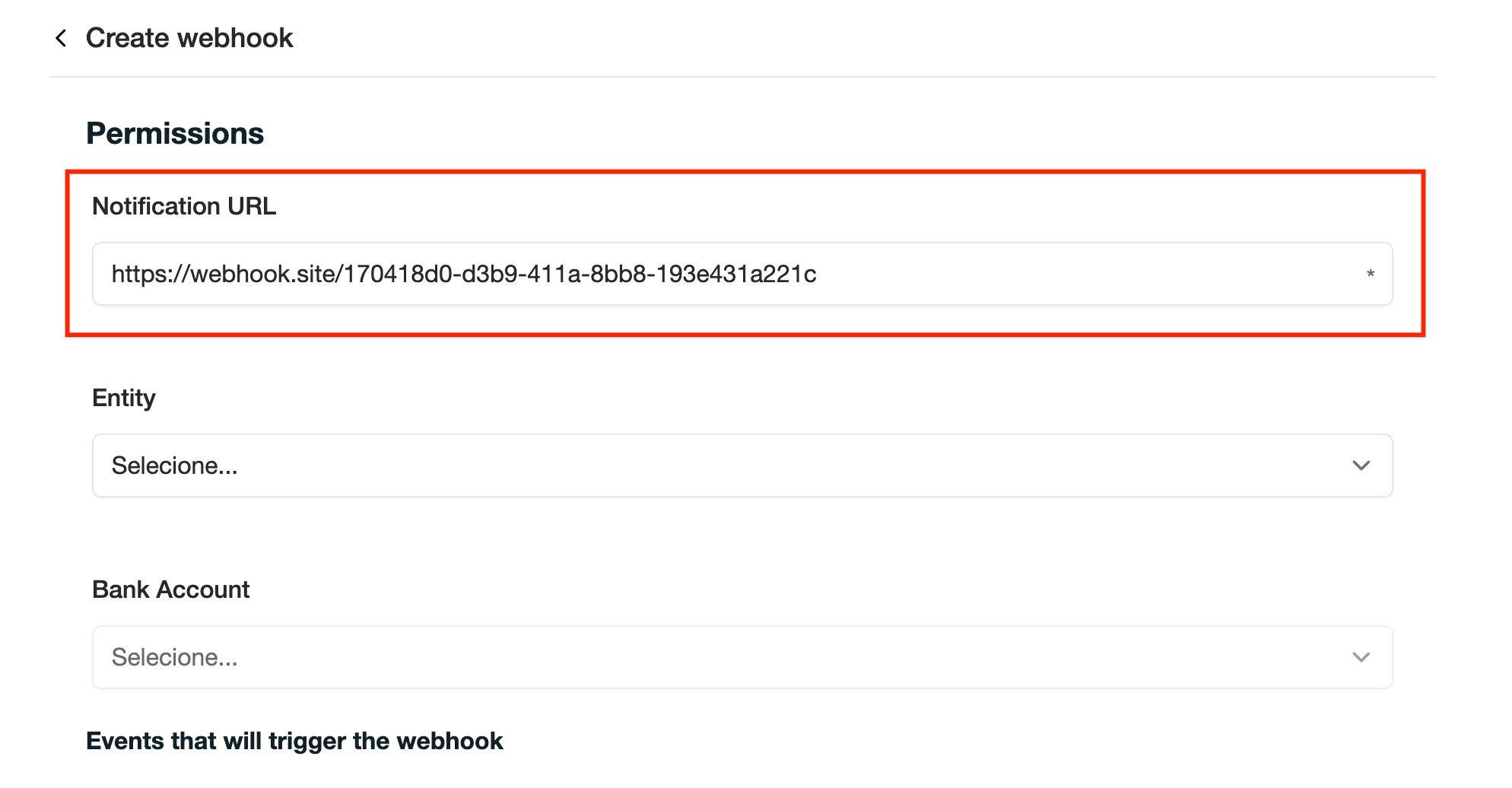
POST requests.5
Select an Entity (optional)
Leave the field empty to receive events from all entities in your account, or select an entity to receive only the events related to it.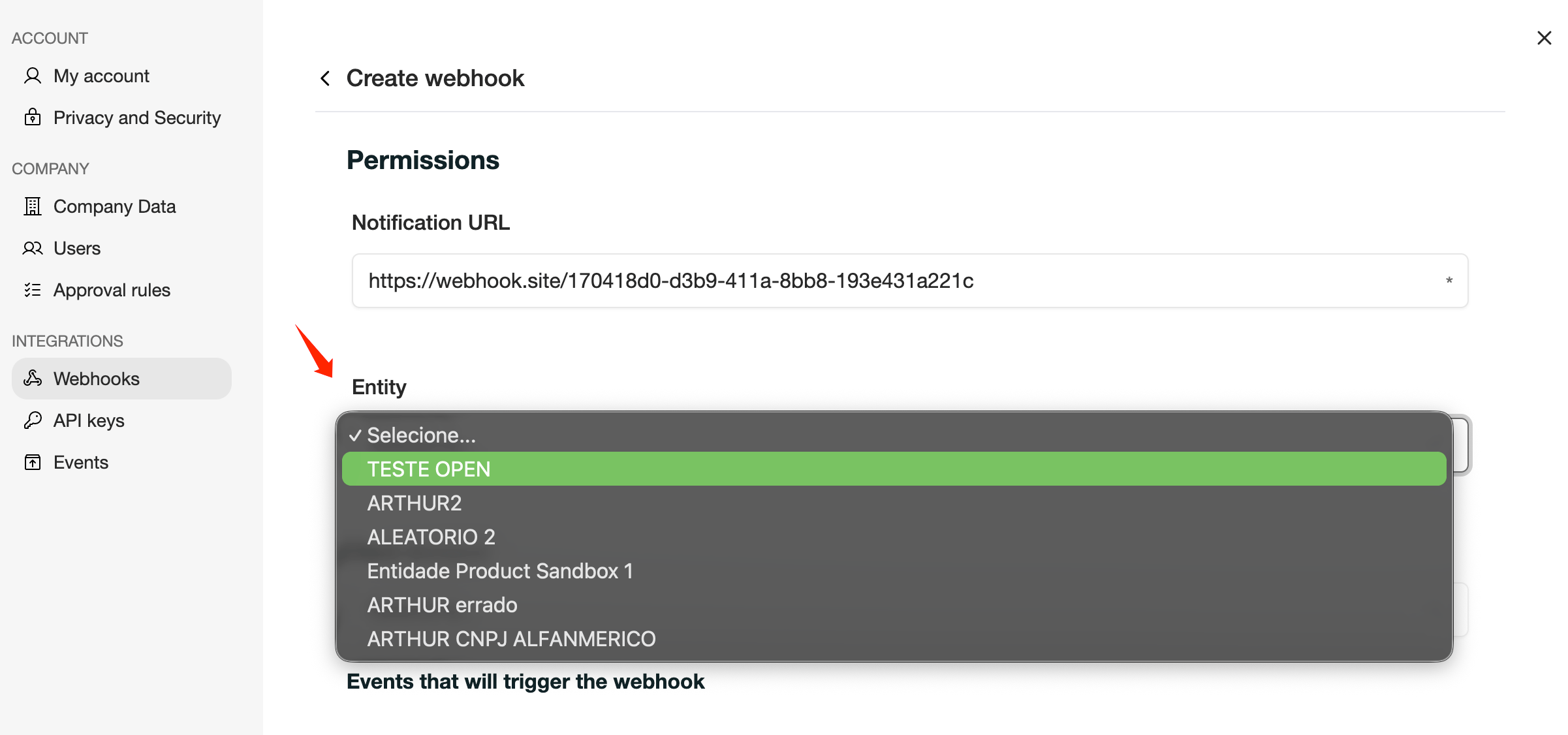
6
Select a Bank Account (optional)
After selecting an entity, you can narrow the webhook further to one of its bank accounts. Only events generated by that bank account are delivered.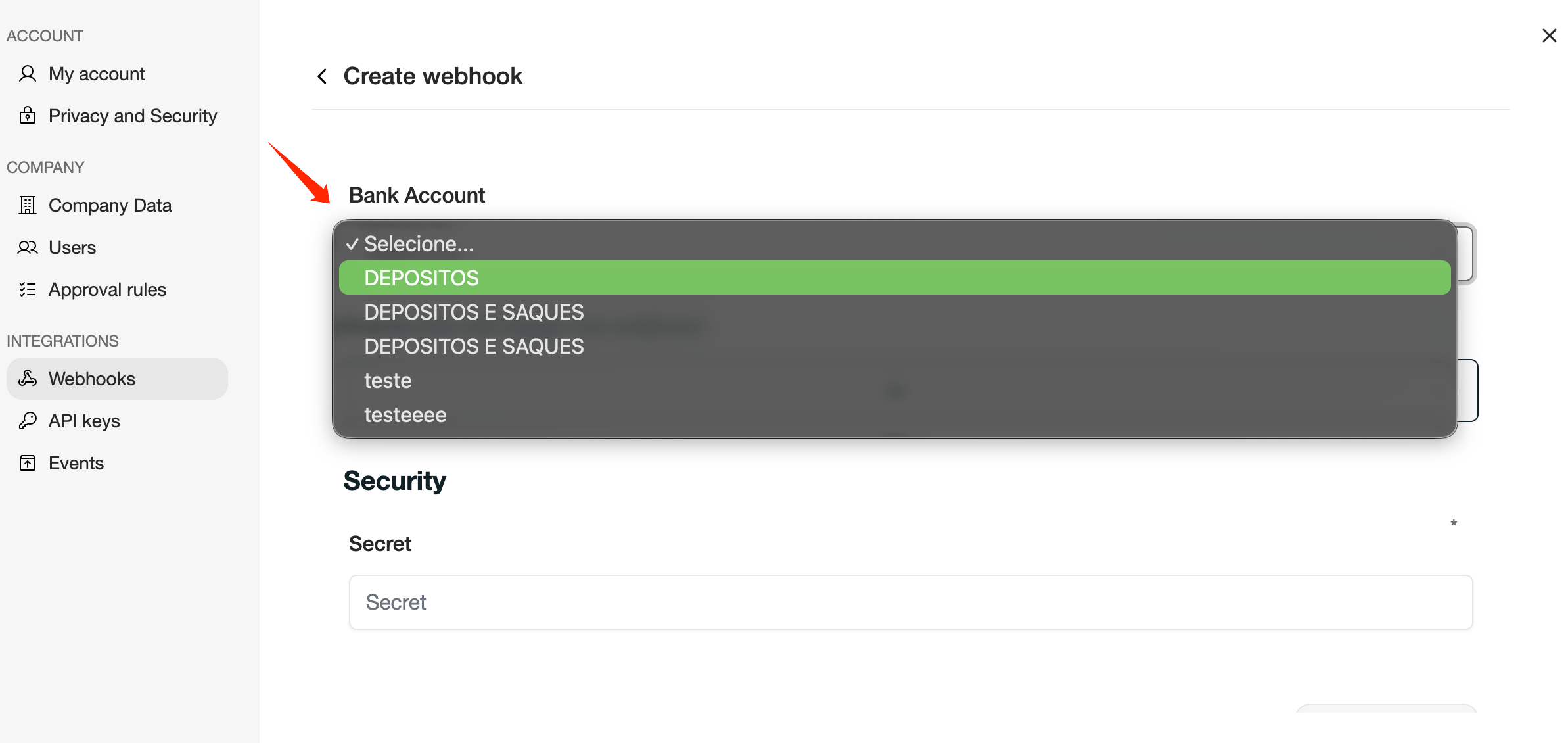
7
Select the events
Choose the event types your application should receive.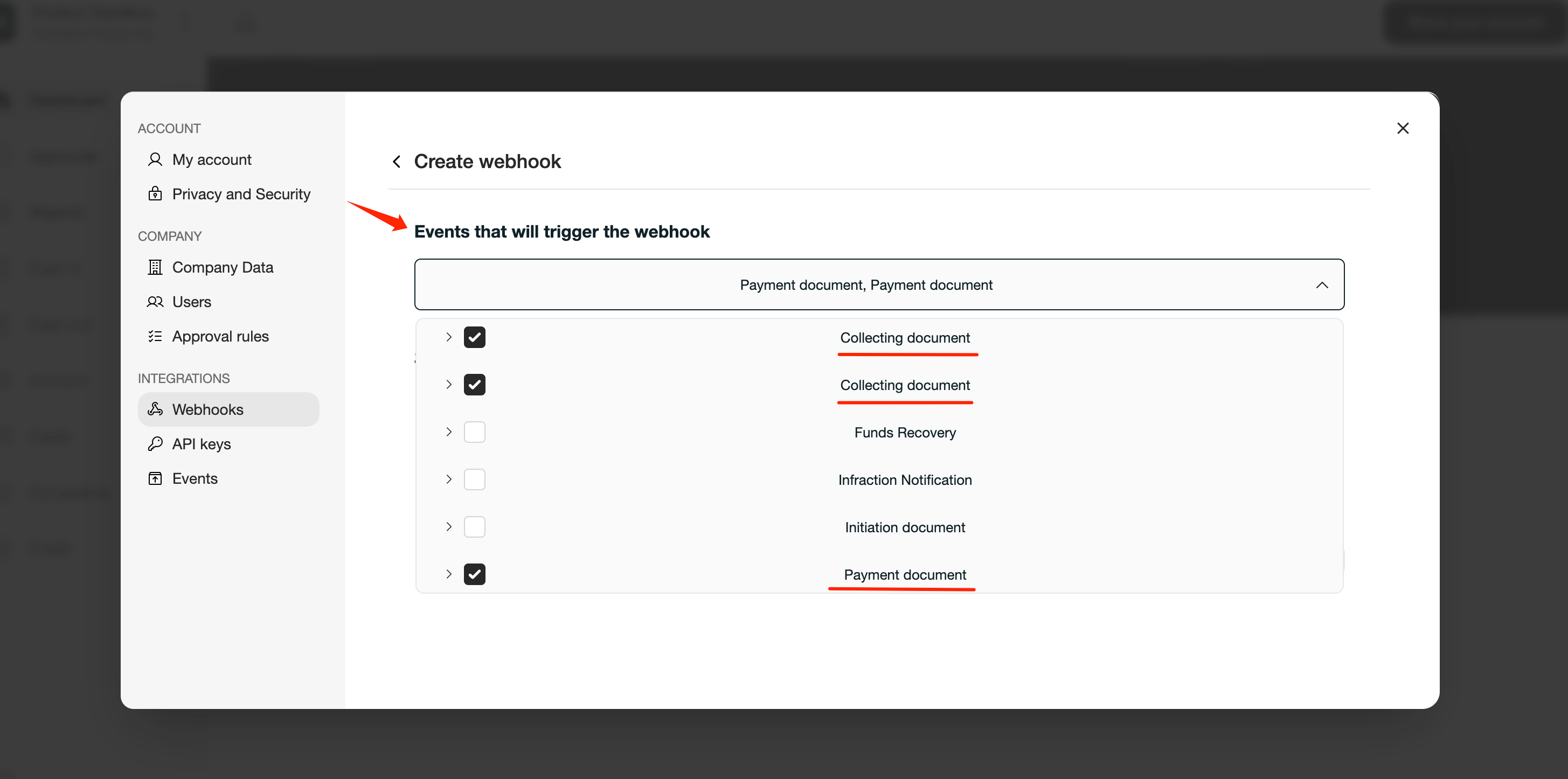
- Payment Document (Pix cash-out)
- Collecting Document (Pix cash-in)
A V2 webhook also carries an
api_version (v100 or v200) that selects the version of the event payloads it receives; it defaults to v100. See the create webhook API reference.8
Enter a Secret
Choose any secret value that only your application knows. Trio uses it to generate a unique signing key for the webhook.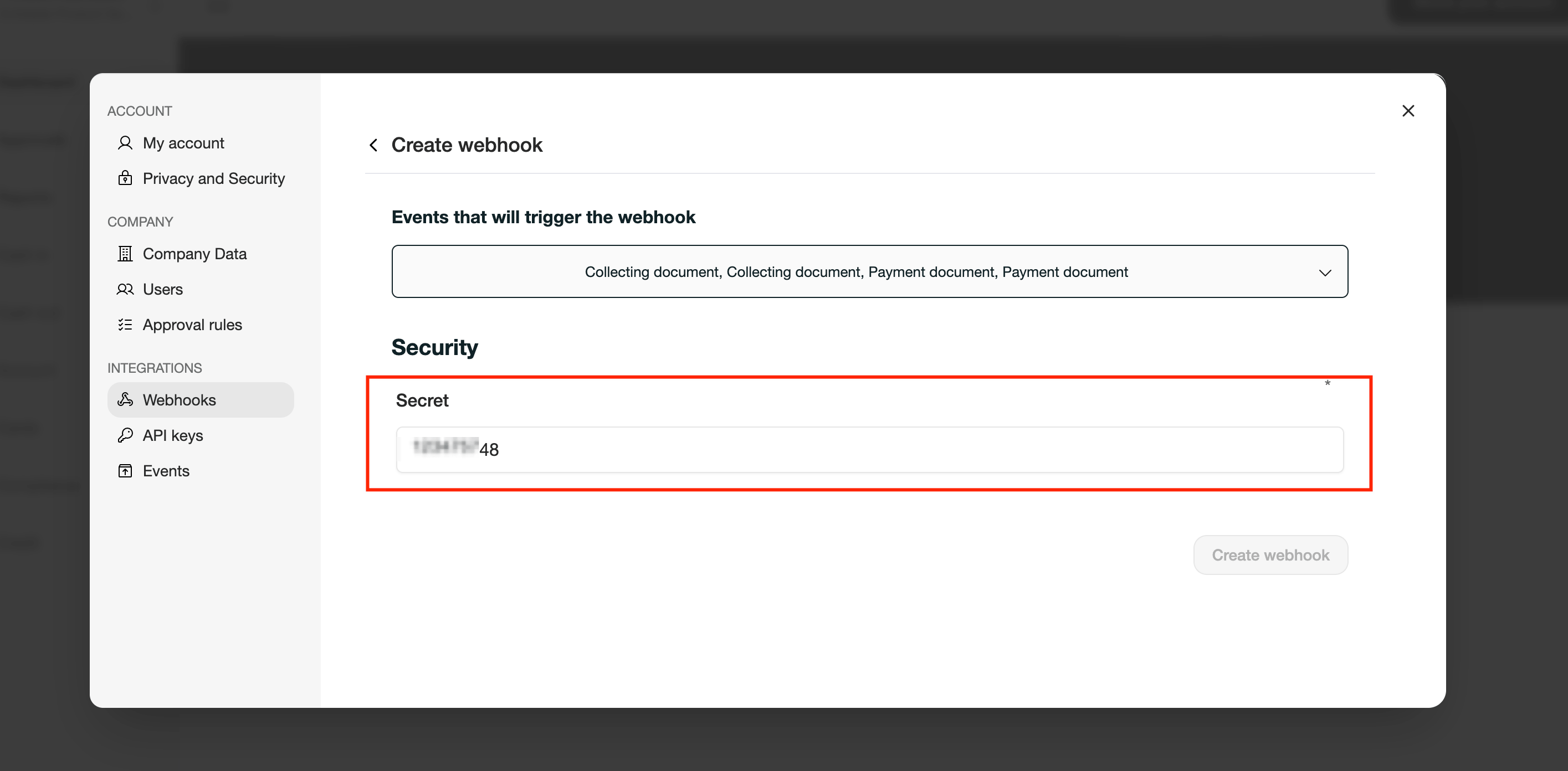
x-webhook-signature HTTP header with the HMAC-SHA256 signature of the request body. To verify a delivery, compute the HMAC-SHA256 of the received payload with the signing key shown on the webhook details page and compare it with the header. When they match, the request came from Trio and the payload was not modified in transit.9
Save the webhook
Click Save Webhook.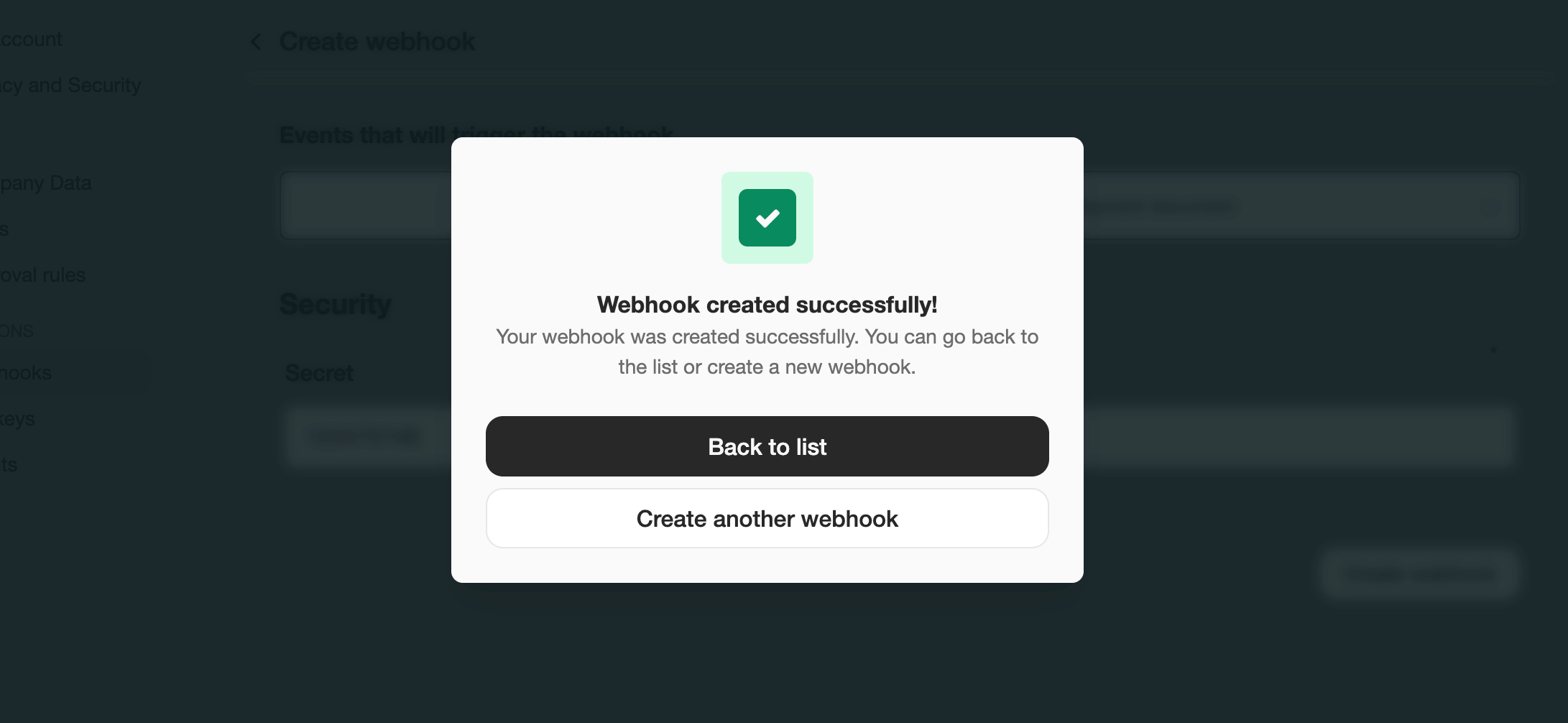
10
Save the signing key
Open the webhook details and store the signing key in a secure location. Your application needs it to verify the signature of every delivery.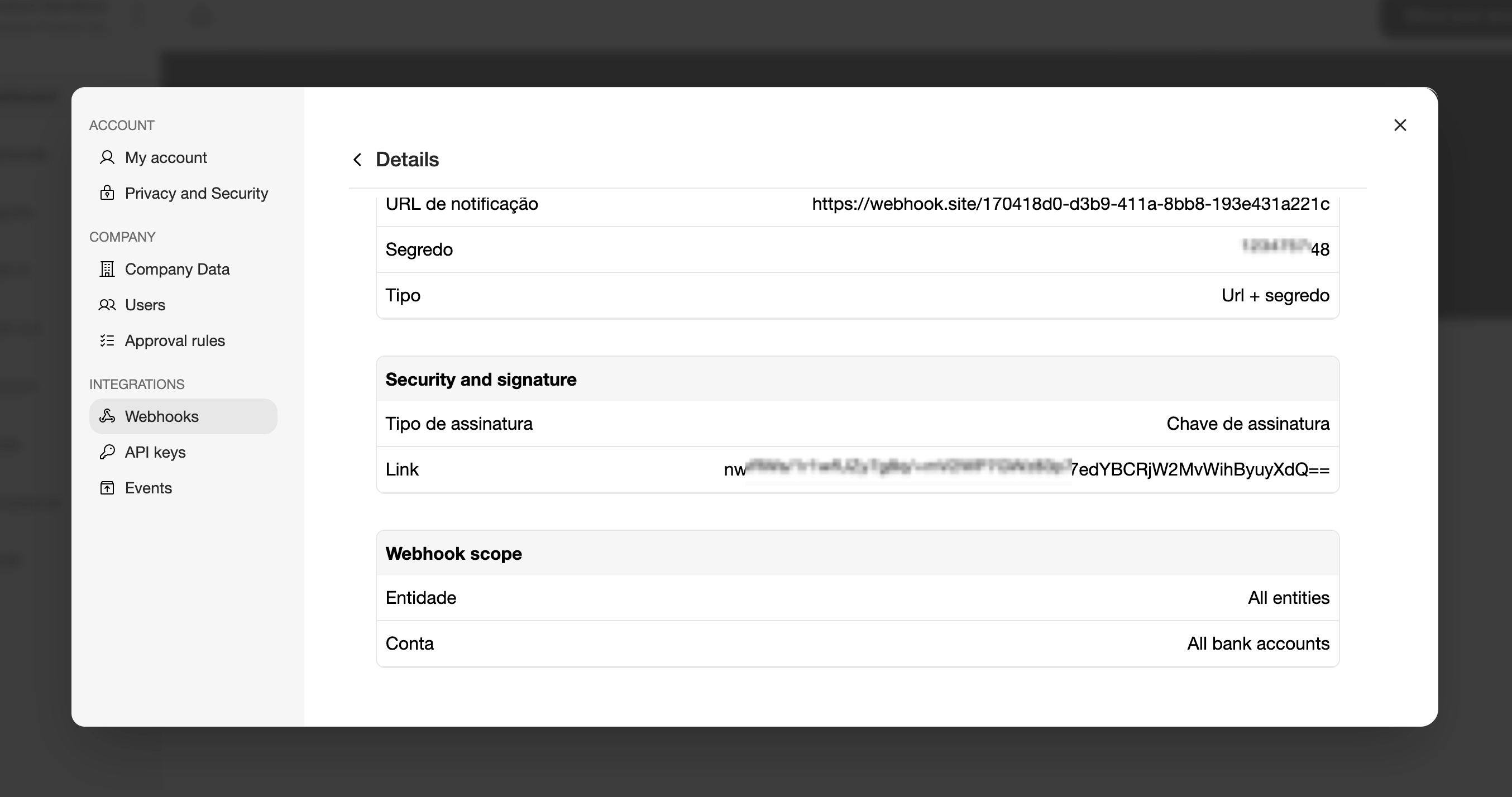
Next steps
- Webhooks: how Trio delivers events to your endpoint.
- Webhook authentication: how to verify that a delivery came from Trio.
- Events: the events you can subscribe to and their payloads.
- Support: where to ask for help and what to include in a report.