> ## Documentation Index
> Fetch the complete documentation index at: https://docs.trio.com.br/llms.txt
> Use this file to discover all available pages before exploring further.
# First Webhook
***
Webhooks allow Trio to notify your application whenever an event occurs, eliminating the need to constantly poll the API for updates.
To create your first webhook, follow the steps below.
1. In the lower-left menu, click the **Settings** icon;
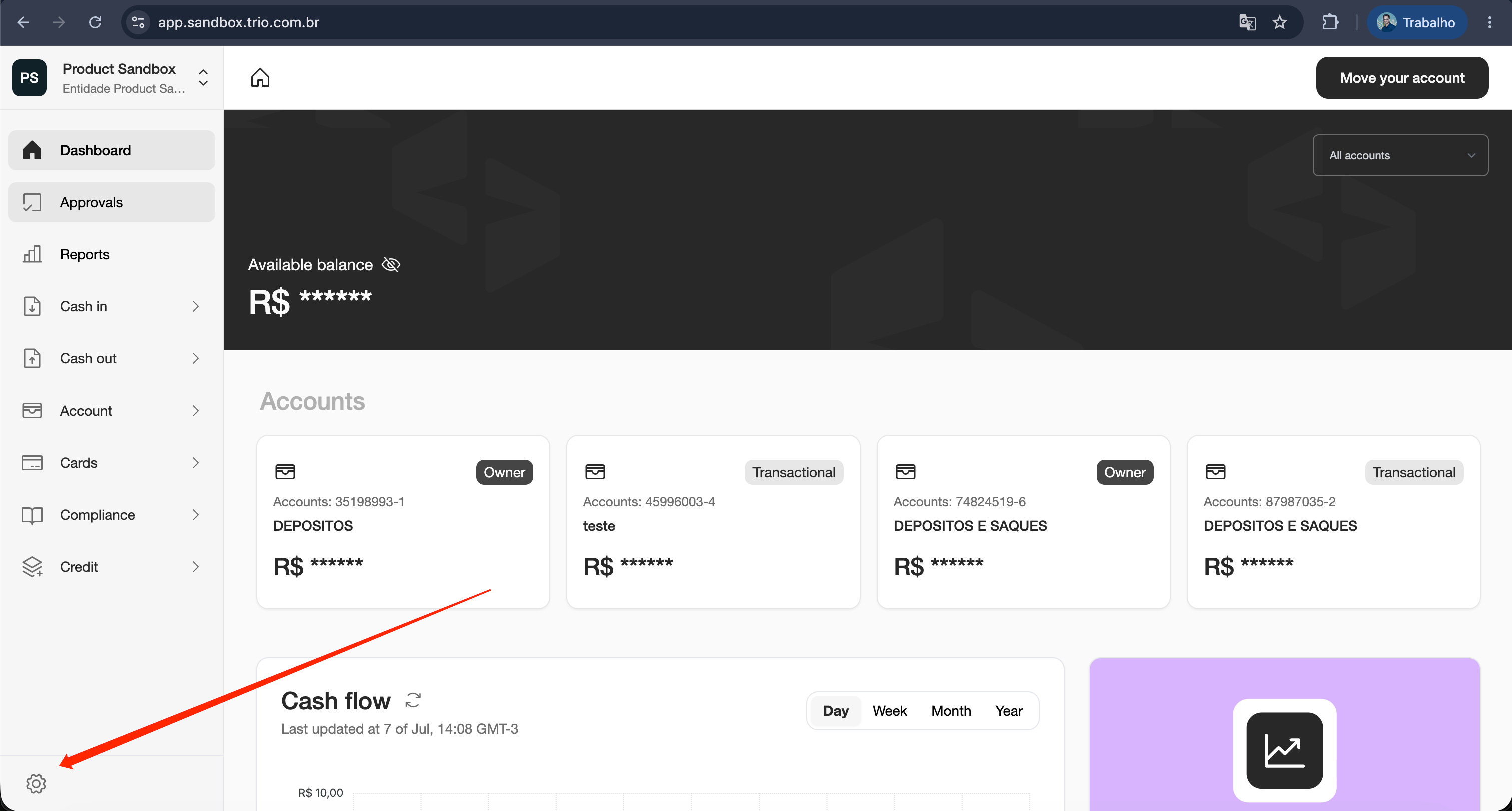 2. In the dropdown menu, select **"Webhooks"**;
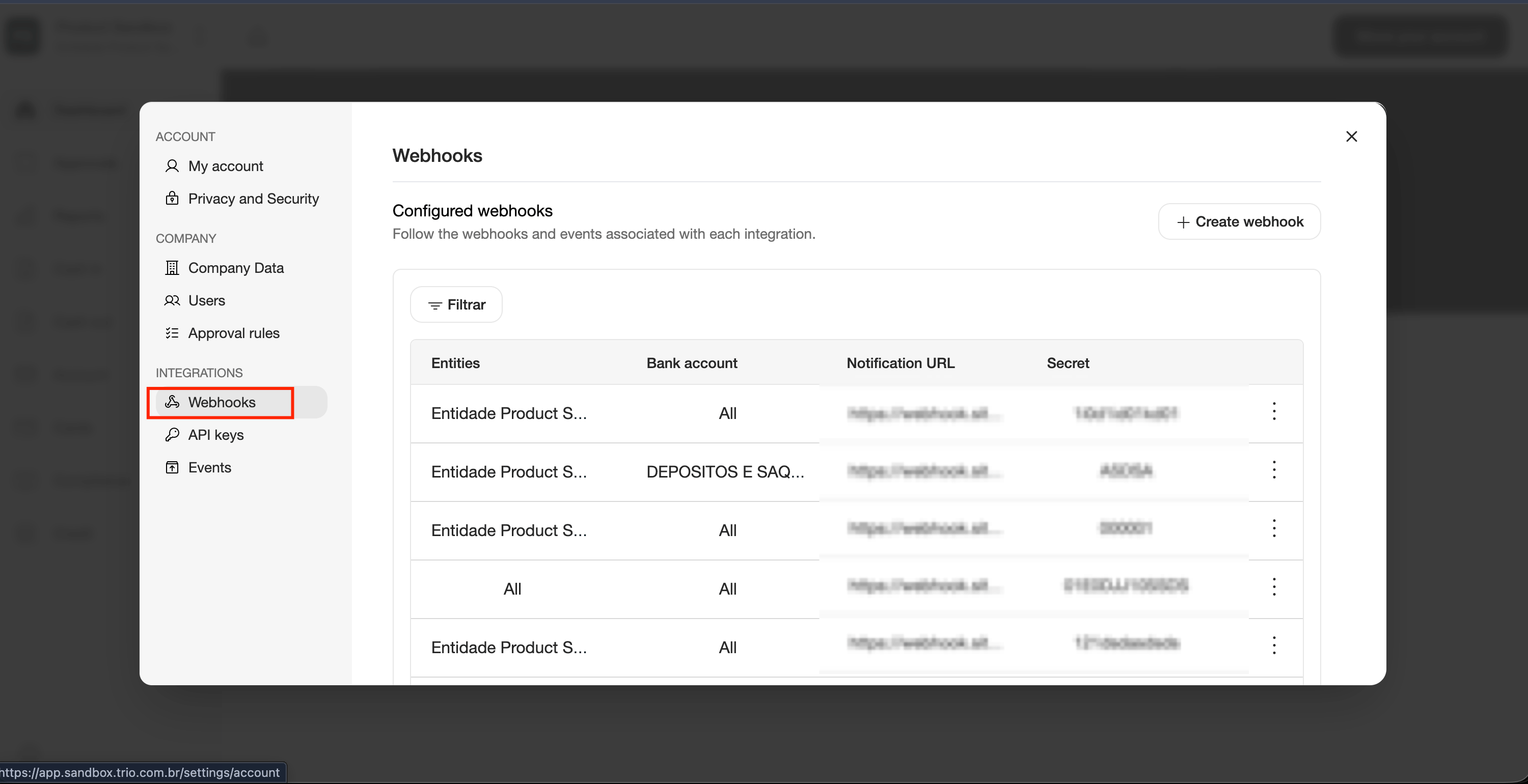 3. Click **"Create Webhook"**;
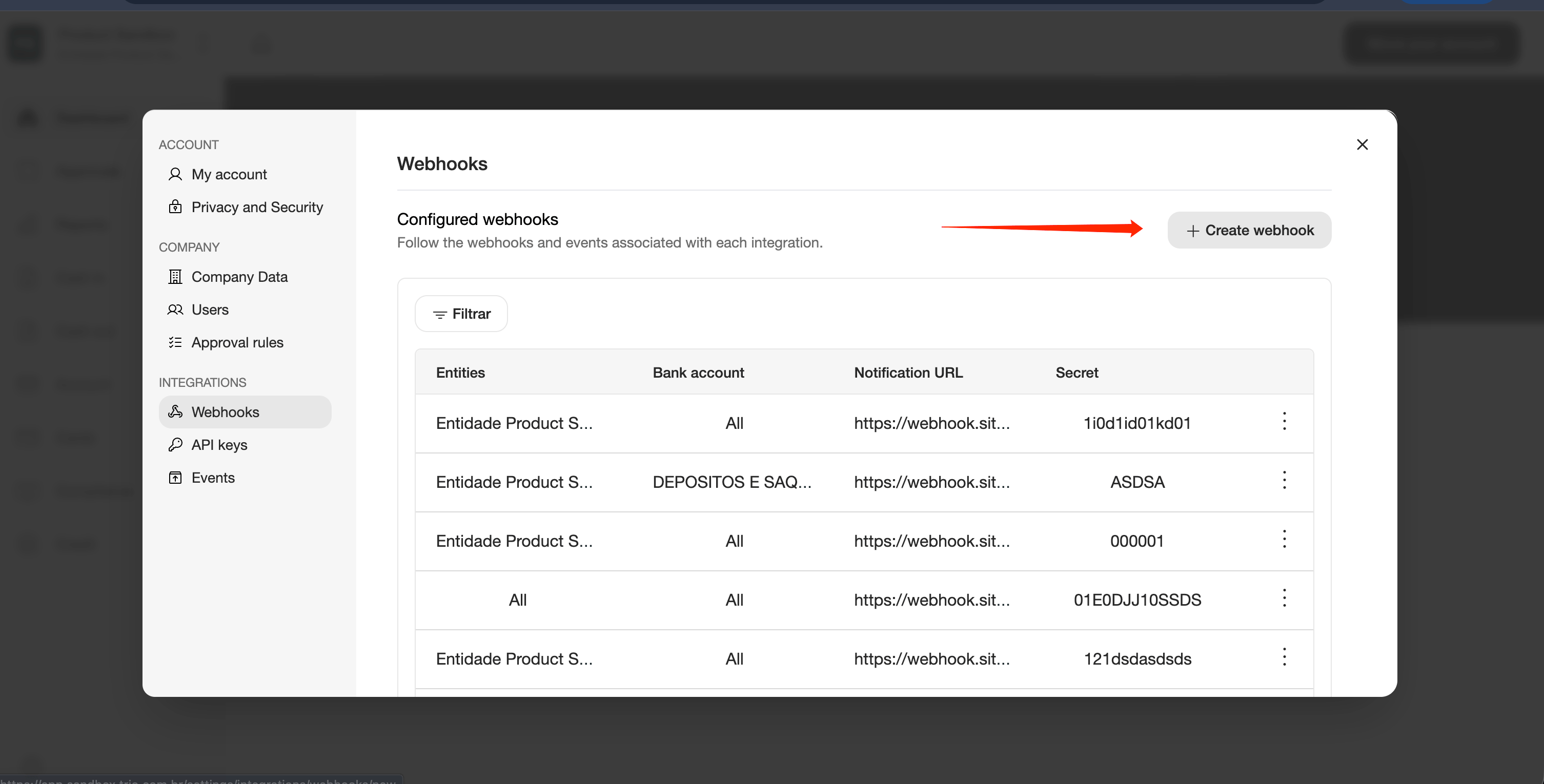 4. Fill in the **Notification URL**.
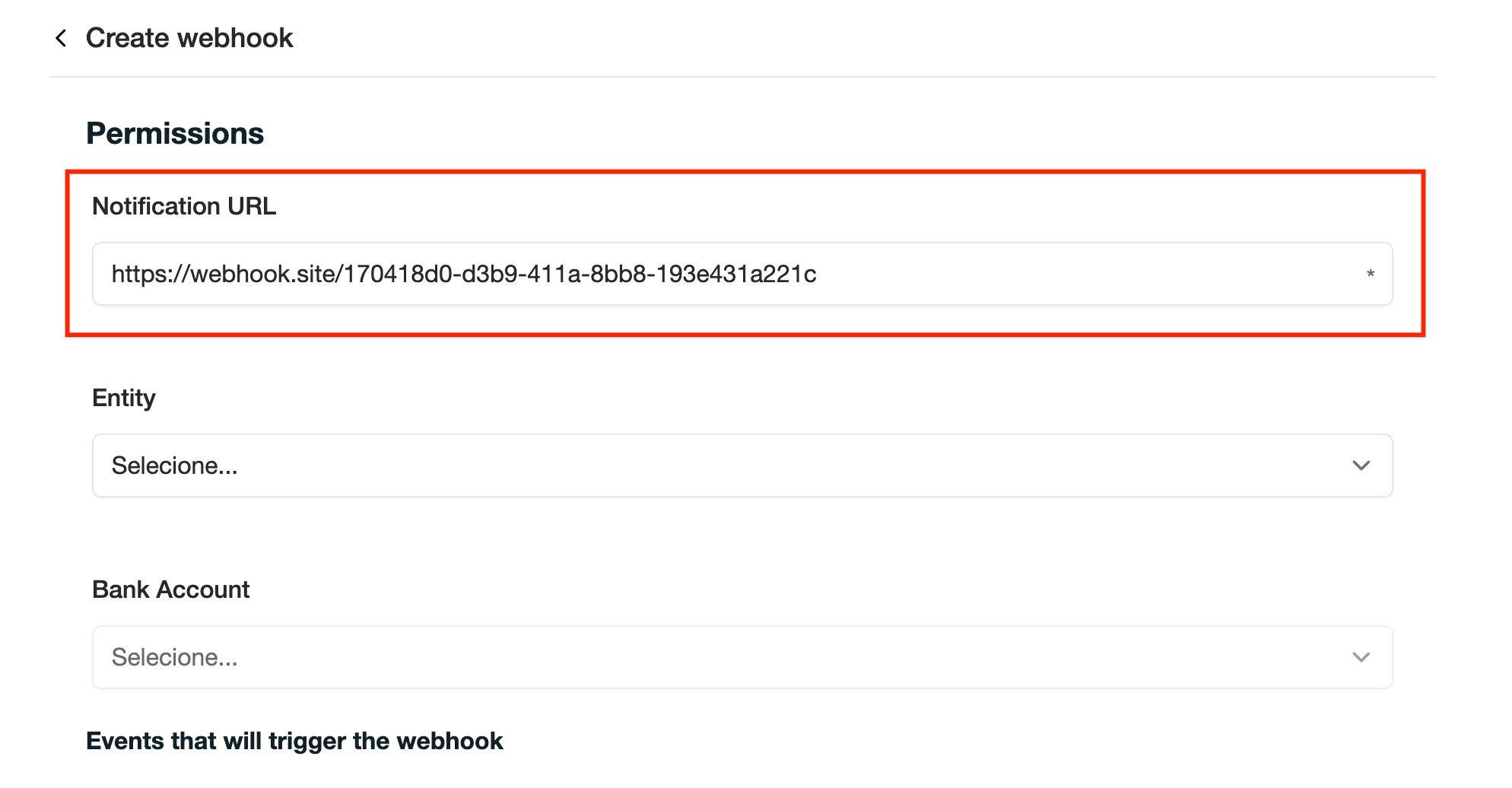 This is the HTTPS endpoint where Trio will deliver webhook notifications. Make sure your endpoint is publicly accessible and capable of receiving HTTP POST requests.
5. (Optional) Select an **Entity**.
This is the HTTPS endpoint where Trio will deliver webhook notifications. Make sure your endpoint is publicly accessible and capable of receiving HTTP POST requests.
5. (Optional) Select an **Entity**.
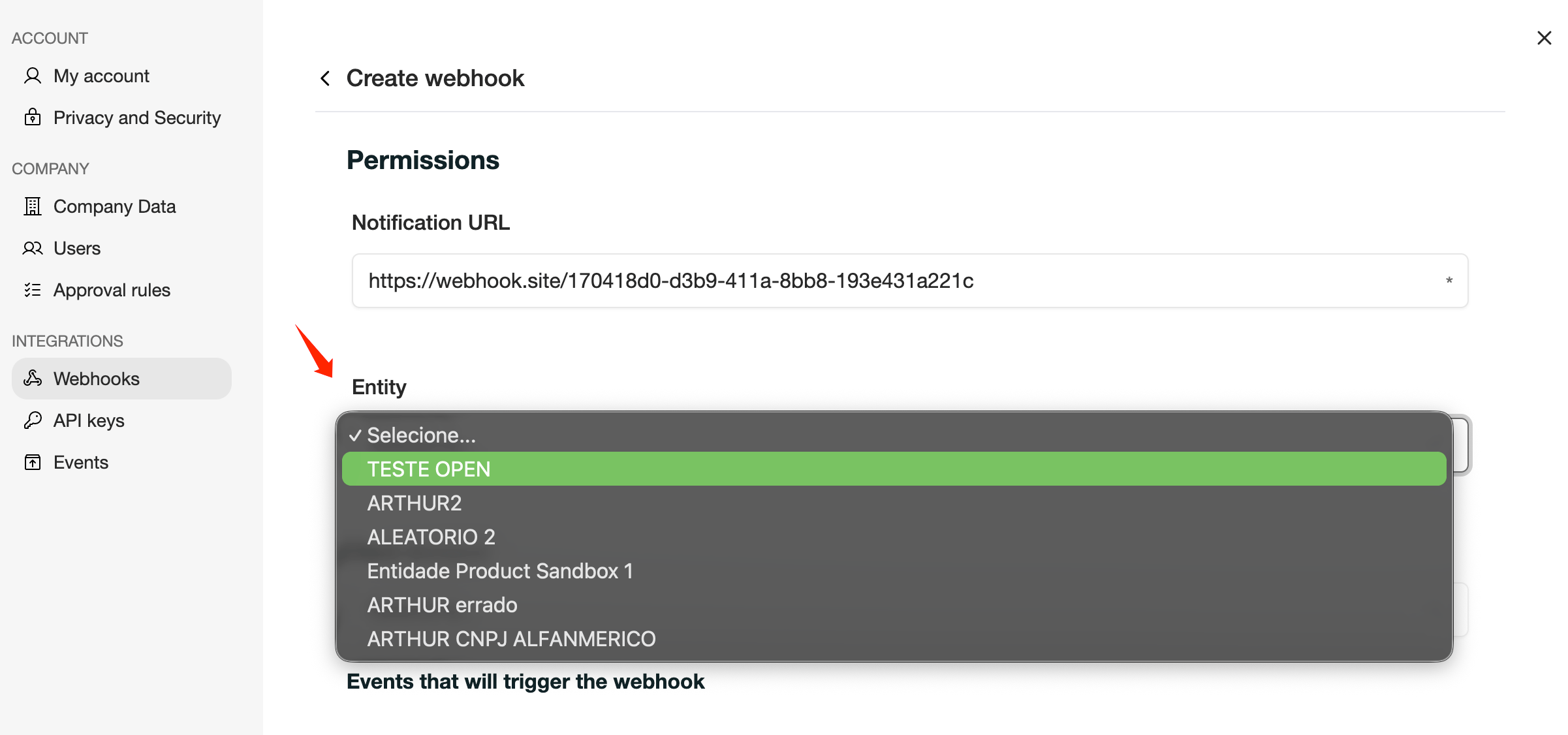 If you leave this field empty, the webhook will receive events from **all entities** in your account.
If you select a specific entity, the webhook will only receive events related to that entity.
6. (Optional) Select a **Bank Account**.
If you leave this field empty, the webhook will receive events from **all entities** in your account.
If you select a specific entity, the webhook will only receive events related to that entity.
6. (Optional) Select a **Bank Account**.
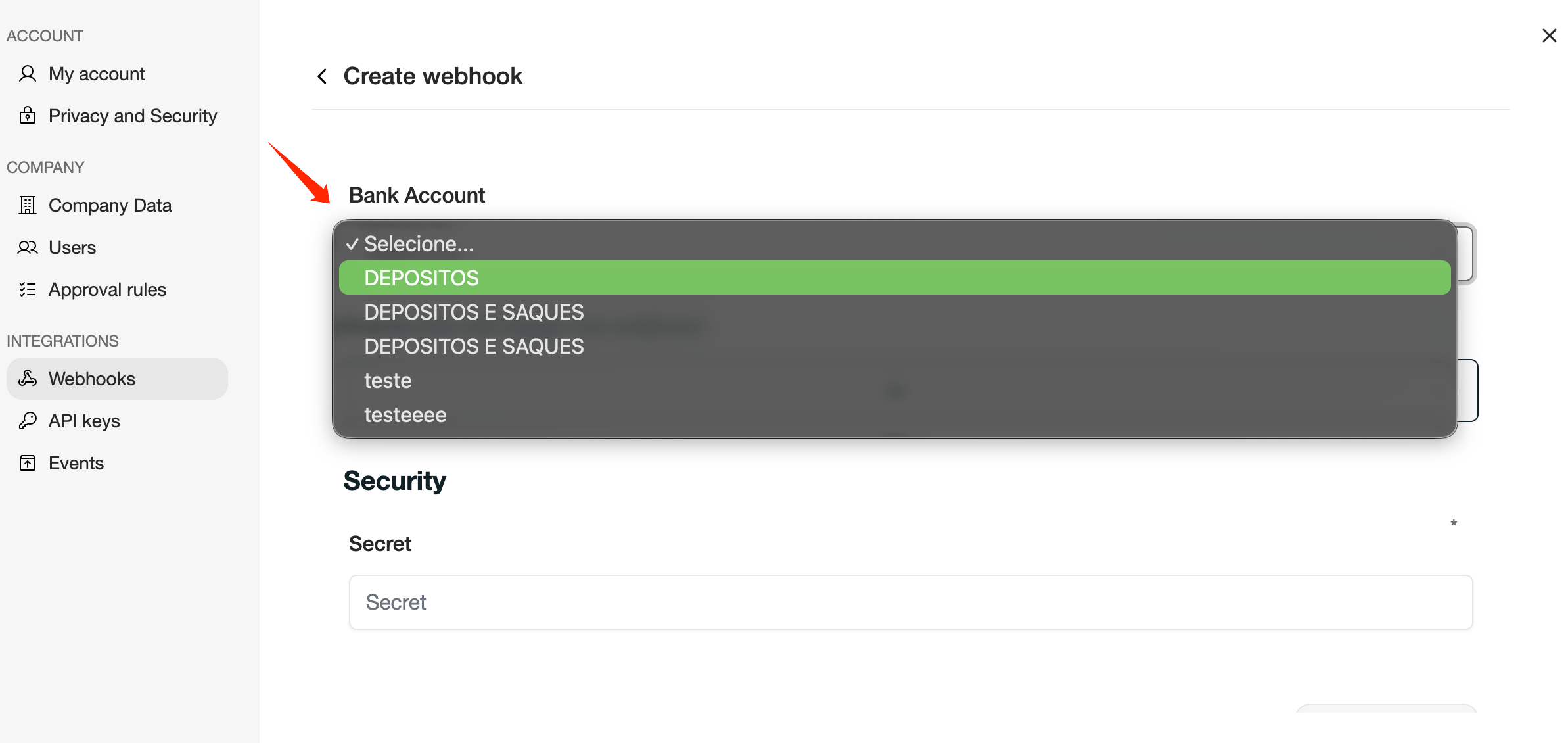 After selecting an Entity, you can further filter notifications by choosing one of its Bank Accounts.
Only events generated by that Bank Account will be delivered to this webhook.
7. Select the **Events that will trigger the webhook**.
After selecting an Entity, you can further filter notifications by choosing one of its Bank Accounts.
Only events generated by that Bank Account will be delivered to this webhook.
7. Select the **Events that will trigger the webhook**.
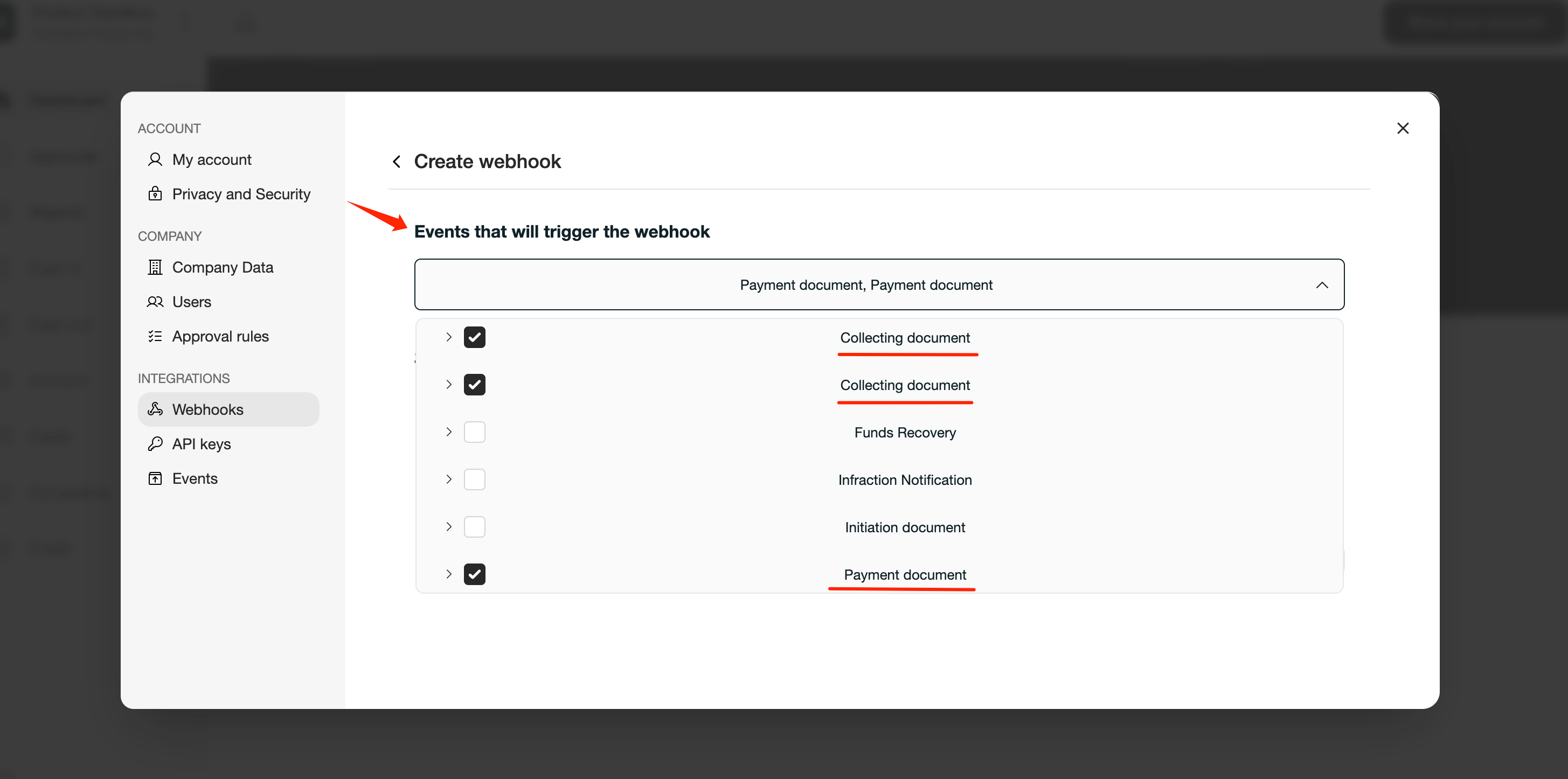 Choose the event types your application should receive.
For most Pix integrations, the recommended events are:
* **Payment Document** (Pix Cash Out)
* **Collecting Document** (Pix Cash In)
You can also subscribe to any other events that are relevant to your integration.
8. Enter a **Secret**.
Choose the event types your application should receive.
For most Pix integrations, the recommended events are:
* **Payment Document** (Pix Cash Out)
* **Collecting Document** (Pix Cash In)
You can also subscribe to any other events that are relevant to your integration.
8. Enter a **Secret**.
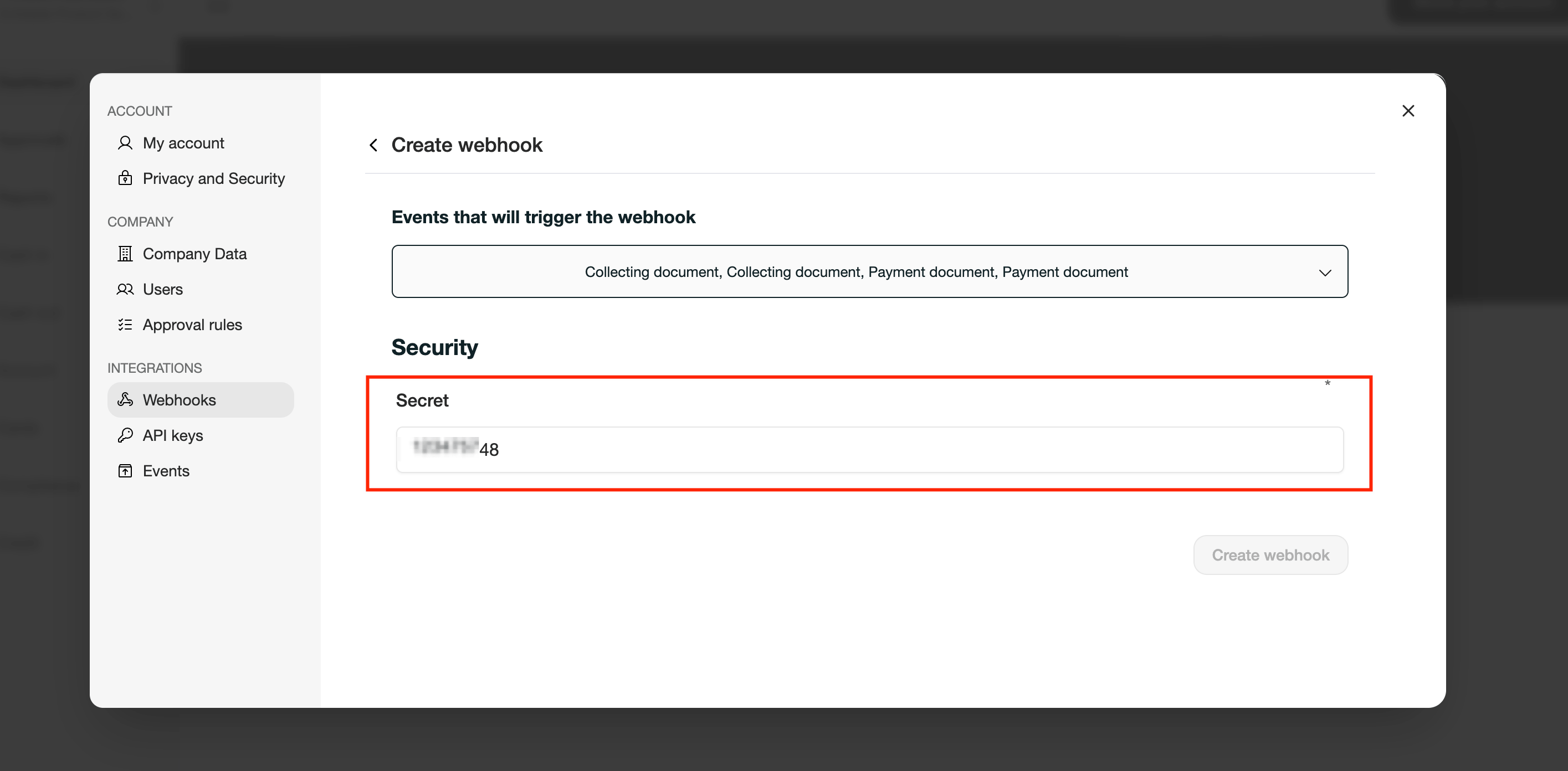 You can also subscribe to any other events that are relevant to your integration. Enter a Secret.
Choose any secret value that only your application knows. This value is used by Trio to generate a unique signing key for your webhook. Whenever a webhook is delivered, Trio includes HTTP header:
x-webhook-signature – contains the HMAC-SHA256 signature of the request body.
Your application should compute the HMAC-SHA256 hash of the received payload using the webhook signing key available in the webhook details page, then compare it with the value received in x-webhook-signature.
If both signatures match, you can safely verify that:
* the request was sent by Trio;
* the payload was not modified during transmission.
9. Click **Save Webhook**.
You can also subscribe to any other events that are relevant to your integration. Enter a Secret.
Choose any secret value that only your application knows. This value is used by Trio to generate a unique signing key for your webhook. Whenever a webhook is delivered, Trio includes HTTP header:
x-webhook-signature – contains the HMAC-SHA256 signature of the request body.
Your application should compute the HMAC-SHA256 hash of the received payload using the webhook signing key available in the webhook details page, then compare it with the value received in x-webhook-signature.
If both signatures match, you can safely verify that:
* the request was sent by Trio;
* the payload was not modified during transmission.
9. Click **Save Webhook**.
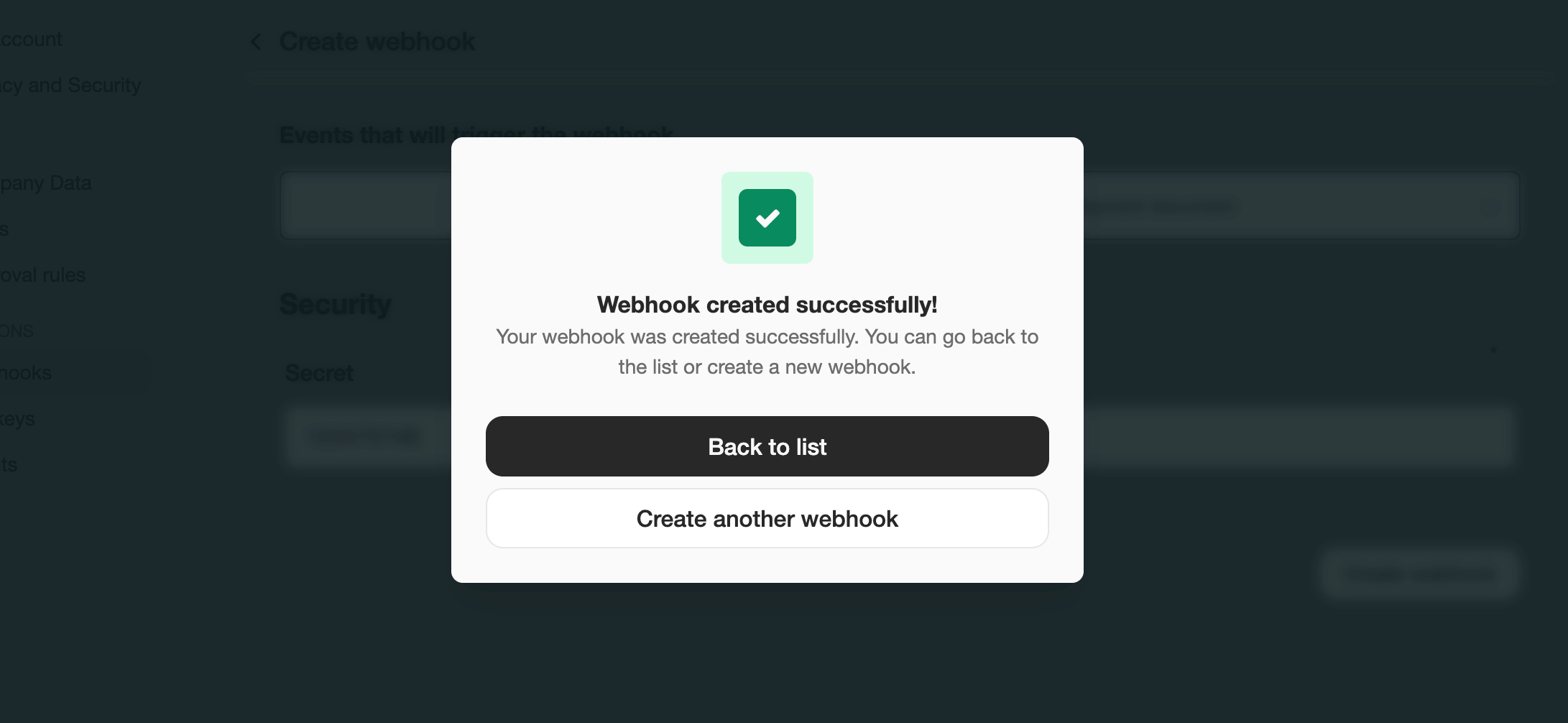 10. Save the webhook secret in details
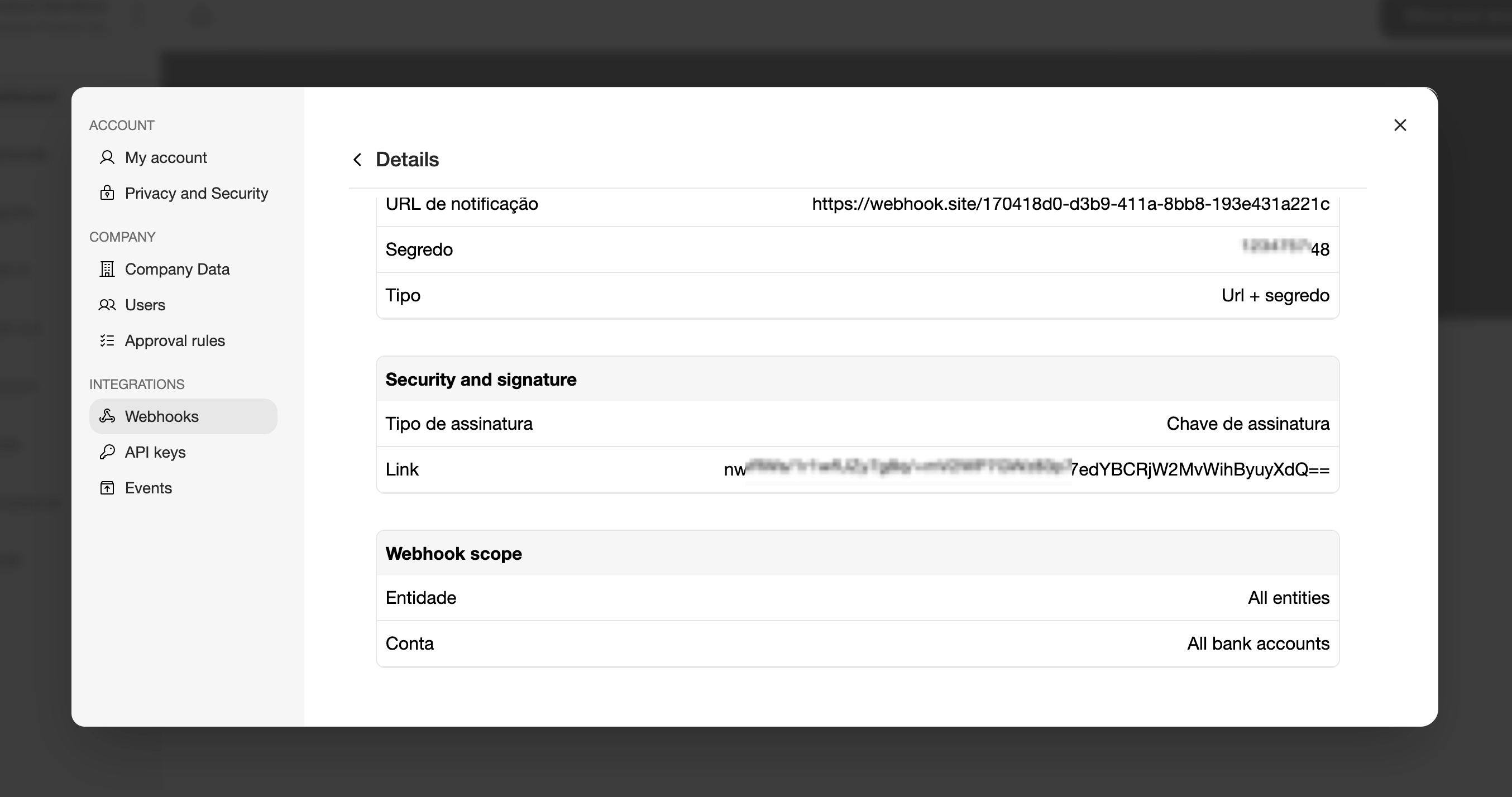 Your webhook is now active and ready to receive notifications.
For more information about webhook payloads, events, and signature validation, see the Webhooks documentation.
[Webhook Documentation](/webhooks/introduction)
Your webhook is now active and ready to receive notifications.
For more information about webhook payloads, events, and signature validation, see the Webhooks documentation.
[Webhook Documentation](/webhooks/introduction)